
Show Geo IP information in Log Analytics

03/03/2023
As many ip are hitting the application gateway, I wanted to know more about these IP’s geolocation and to show in a report.
I found 2 repos who offer a list of IP’s and their countries :
– https://raw.githubusercontent.com/datasets/geoip2-ipv4/master/data/geoip2-ipv4.csv
– https://datahub.io/core/geoip2-ipv4/r/geoip2-ipv4.csv
1 Import data from the CSV
let ip_data = externaldata(Network:string, geoname_id:string, continent_code:string, continent_name:string, country_iso_code:string, country_name:string)
   ['https://raw.githubusercontent.com/datasets/geoip2-ipv4/master/data/geoip2-ipv4.csv']
    with (ignoreFirstRecord=true, format="csv");
Code Explanation :
The csv file contains some information about the ip geo-locations (pic 1)

This script uses the “externaldata” function in BigQuery to import data from a CSV file located at the specified URL. The data being imported is related to geographic information for IP addresses.
The function takes several parameters: (these relate to the data we want to import from the csv)
- “Network” is a string representing the IP address network range in CIDR notation.
- “geoname_id” is a string representing the unique identifier for the location.
- “continent_code” is a string representing the two-letter continent code.
- “continent_name” is a string representing the name of the continent.
- “country_iso_code” is a string representing the two-letter country code in ISO 3166-1 alpha-2 format.
- “country_name” is a string representing the name of the country.
The function then specifies the URL where the CSV file is located. In this case, the CSV file is located at “https://raw.githubusercontent.com/datasets/geoip2-ipv4/master/data/geoip2-ipv4.csv“.
Finally, the function includes two options:
- “ignoreFirstRecord” is set to true, which means the first row of the CSV file will be ignored.
- “format” is set to “csv”, indicating that the data being imported is in CSV format.
The resulting data is stored in a variable called “ip_data”.
2 Get all Ip Addresses that accessed the Application Gateway
AzureDiagnostics
| where ResourceProvider == "MICROSOFT.NETWORK" and Category == "ApplicationGatewayAccessLog"
| where Resource == "<APPGWNAME>"
| distinct clientIP_s
Code Explanation :
This code uses Azure Monitor Logs to query diagnostic data for an Azure Application Gateway. The query retrieves distinct client IP addresses that have accessed the specified Application Gateway.
The query consists of three main parts, separated by the “|” character (which is used to pipe the output of one command into the next):
- AzureDiagnostics – this specifies the data source, which is Azure Monitor Logs.
- The first “where” clause filters the results to only include data related to the “MICROSOFT.NETWORK” resource provider and the “ApplicationGatewayAccessLog” category. This ensures that only data from Application Gateway access logs is included in the results.
- The second “where” clause filters the results to only include data related to the specified Application Gateway, which is identified by its name. The “<APPGWNAME>” placeholder should be replaced with the actual name of the Application Gateway being queried.
- The “distinct” keyword is used to retrieve only unique client IP addresses from the filtered data. The “clientIP_s” field is the name of the field that contains the client IP address information.
When executed, this code will return a list of distinct client IP addresses that have accessed the specified Application Gateway.
3 lookup the ip information in the table
| evaluate ipv4_lookup(ip_data, clientIP_s, Network)
| sort by country_iso_code asc
Code Explanation :
This code is used to perform a lookup of client IP addresses against the data stored in the “ip_data” variable, which was imported in the previous script.
The “ipv4_lookup” function is used to perform the lookup. This function takes three parameters:
- The first parameter is the name of the variable containing the imported data (“ip_data”).
- The second parameter is the name of the field in the imported data that contains the client IP address information (“clientIP_s”).
- The third parameter is the name of the field in the imported data that contains the IP address network range information (“Network”).
The “evaluate” command is used to apply the “ipv4_lookup” function to each row of data in the input table. In this case, the input table is not explicitly specified, so it is assumed to be the result of the previous command in the pipeline.
The “sort by” command is used to sort the resulting data by the “country_iso_code” field in ascending order. This will sort the data alphabetically by country code.
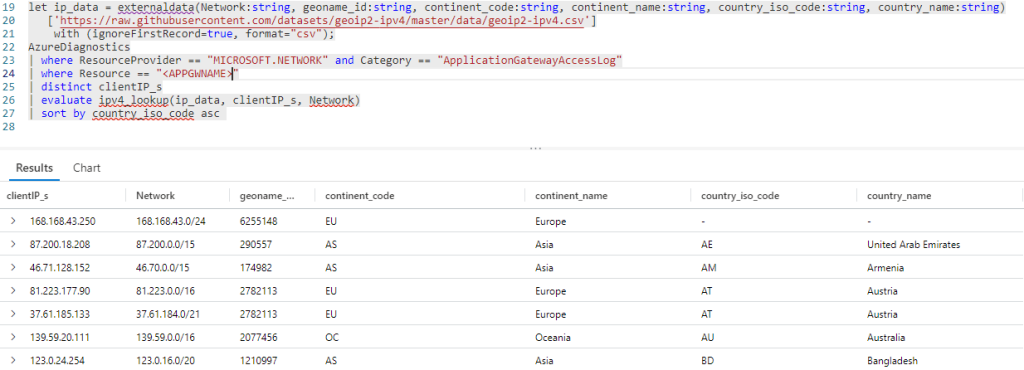
When executed, this code will return a table that includes the original client IP addresses, along with additional columns of data from the “ip_data” variable, such as the corresponding country code, name, and geographic location. The resulting table will be sorted by country code in ascending order.
4 Putting it all together
let ip_data = externaldata(Network:string, geoname_id:string, continent_code:string, continent_name:string, country_iso_code:string, country_name:string)
   ['https://raw.githubusercontent.com/datasets/geoip2-ipv4/master/data/geoip2-ipv4.csv']
    with (ignoreFirstRecord=true, format="csv");
AzureDiagnostics
| where ResourceProvider == "MICROSOFT.NETWORK" and Category == "ApplicationGatewayAccessLog"
| where Resource == "<APPGWNAME>"
| distinct clientIP_s
| evaluate ipv4_lookup(ip_data, clientIP_s, Network)
| sort by country_iso_code asc
Result of the Query :
REMARK:
All the code explanation was done by chatgpt !